Weaviate Vector DB
Weaviate Vector DB
Installation
Weaviate server
You can just use the below docker compose file to start the Weaviate server at once.
On mac
50051port is used for normal GRPC connections, hence you will need to change the port to something else. I'm using50052.
version: '3.8'

services:
  weaviate:
    command:
      - --host
      - 0.0.0.0
      - --port
      - '8080'
      - --scheme
      - http
    image: cr.weaviate.io/semitechnologies/weaviate:1.32.4
    ports:
      - "8080:8080"
      - "50052:50051"
    restart: on-failure:0
    environment:
      QUERY_DEFAULTS_LIMIT: 25
      AUTHENTICATION_ANONYMOUS_ACCESS_ENABLED: 'true'
      PERSISTENCE_DATA_PATH: '/var/lib/weaviate'
      ENABLE_API_BASED_MODULES: 'true'
      ENABLE_MODULES: 'text2vec-ollama,generative-ollama'
      CLUSTER_HOSTNAME: 'node1'
      ENABLE_GRPC: 'true'
    networks:
      default:
networks:
  default:
    driver: bridge
Weaviate UI (optional/helper)
There is a cool repository that let's you easily search the schema and contents of your DB named naaive/weaviate-ui. But at the time of writing this post, Weaviate v4 was not supported by this library. But luckily and thanks to martincpt, he had already raised a PR with v4 support which I am using.
Installing from Martincpt's PR
If you want to use the changes raised by Martincpt, then you will need to clone his codebase and checkout the weaviate-python-client-v4 branch and run the compose file present in the root directory.
git clone https://github.com/martincpt/weaviate-ui.git
cd weaviate-ui
git checkout weaviate-python-client-v4
docker compose up
Installing from main repo
If Martincpt's changes are merged or the main repo has started supporting v4 then you can use the main repo for your UI, naaive/weaviate-ui
git clone https://github.com/naaive/weaviate-ui
cd weaviate-ui
docker compose up
Ingest data in weaviate
We will start with the example we discussed in Vector DB where we were storing time and activity for the day. And we wanted to query what I was doing around that time.
I will use
pythonto insert data to the DB. You can use any language of choice.
Schema
To inset a data in weaviate, first you need to define a schema.
A schema is the blueprint of what you are storing and where you are storing it.
Classes are the where, vectors are the what and properties are the metadata.
A schema is declared as an array of classes and each class has some properties.
Just like table name and column name in SQL
For us, there is only one class, Activities and we will store time and activity inside it.
Also, we are required to declare the type of data each property is going to be.
And about vectors, Weaviate gives you freedom to choose an internal vectorizer or provide vectors yourself. And here, we will define our vectors ourselves.
Install Weaviate client for python
pip install weaviate-client
Code to ingest data
Connect to the client
First and foremost thing is to connect to the client.
For me, localhost was not working so I gave the url as
127.0.0.1and it worked.
import weaviate
client = weaviate.connect_to_local(
    host="127.0.0.1",
    port=8080,        # REST port
    grpc_port=50052,  # gRPC port
)
Create the schema
Creating schema is again easy, you can use the collections api to call create and pass the required fields.
vector_configis selected asself_provided()as we will be providing our own vector.
And by default it usesCOSINEsimilarity to find near vectors which measures the angle b/w 2 vector. But that is not what we want. We want linear distance, so we will change this toMANHATTAN
client.collections.create(
    name="Activity",
    vector_config=Configure.Vectors.self_provided(
        vector_index_config=Configure.VectorIndex.hnsw(
            distance_metric=VectorDistances.MANHATTAN)),
    properties=[
        Property(name="time", data_type=DataType.INT),
        Property(name="activity", data_type=DataType.TEXT),
    ])
You can view the schema is Weaviate UI.
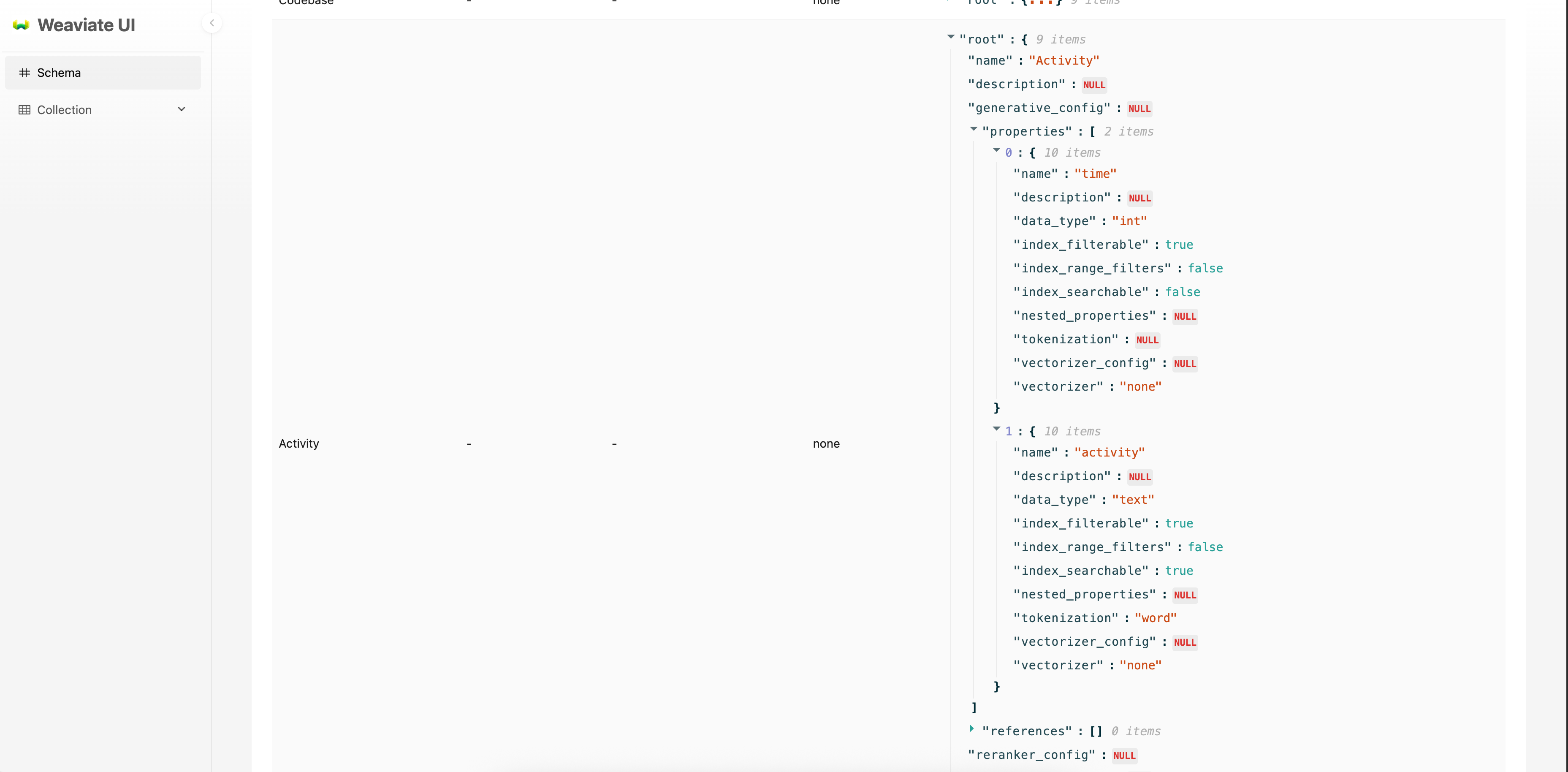
But right now the data is empty and we will add our data in the next step.
Add data to Weaviate
To insert the data you just need to pass the metadata and vector (if you have configured to provide one)
metadata = {
    "time": 23,
    "activity": "sleep"
}

client.collections.get("Activities").data.insert(metadata, vector=[23, 0, 1, 0])
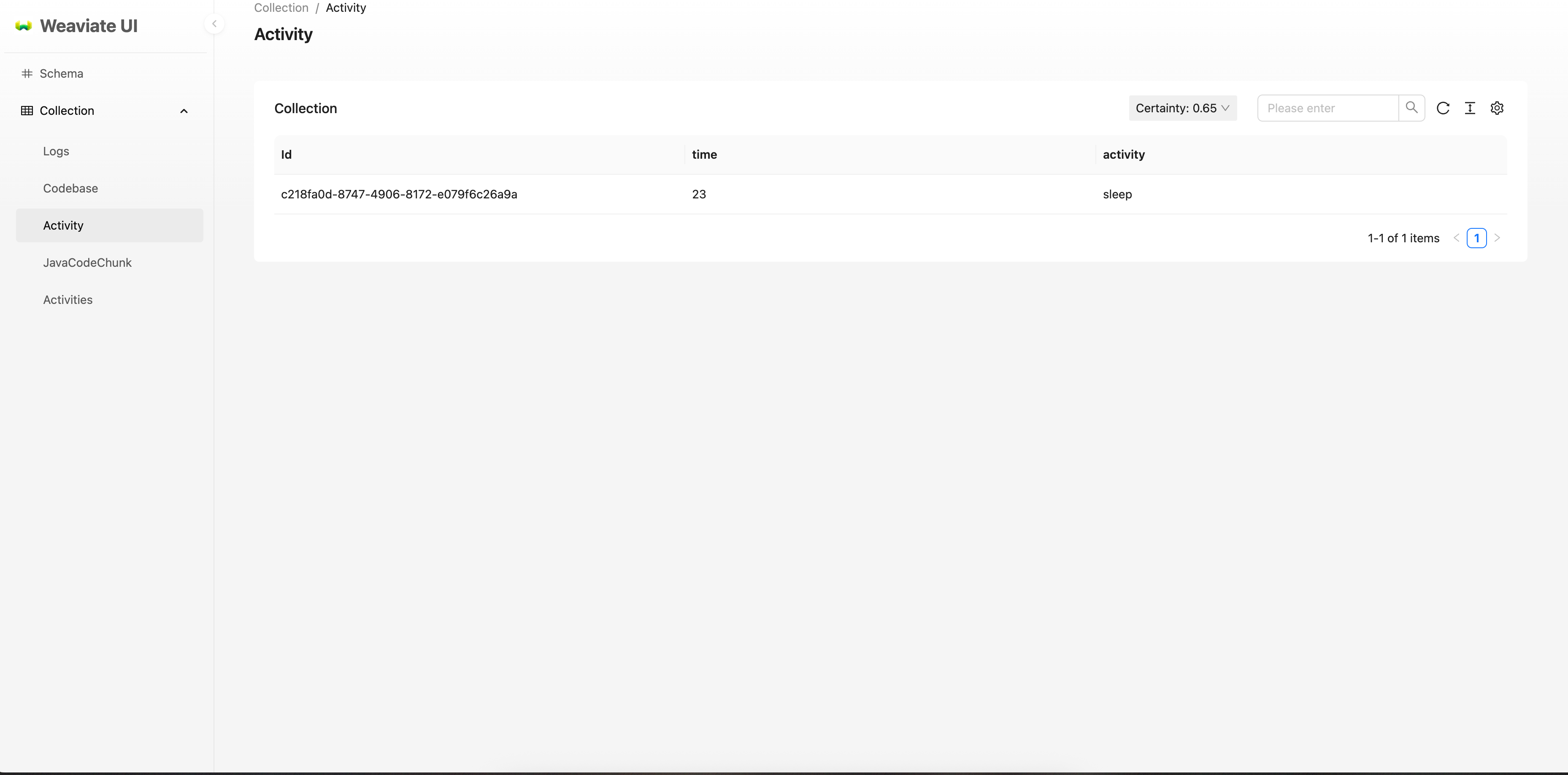
You can see your data inserted as follows. Now we have 1 vector in our DB.
Query data
To query the data, you will need to send the nearest vector around which you want your result.
There are many search algorithms for different purposes, by default Weaviate uses HNSW index
Let's say I want the nearest item from time 7 o'clock. I can invoke near_vector provided my collection and it will return the nearest vector.
results = client.collections.get("Activity").query.near_vector(
    near_vector=[7, 0, 0, 0],
    limit=1,
    return_properties=["time", "activity"]
)

print(results.objects[0].properties)
Right now, my DB has only one entry and that was returned.
{'time': 23, 'activity': 'sleep'}
After adding [7, 0, 0, 1], it returned the value as {'time': 7, 'activity': 'eat'}
You can query a vector which is not present like, [12, 0, 0, 0]. It still returns eat.
But query for [17, 0, 0, 0] it returns sleep.
You want to search [0, 0, 1, 0] for getting the time for sleep and you will fail.
Look at the manhattan distance of eat and sleep from [0, 0, 1, 0].
For eat ([7, 0, 0, 1]), it is 7 + 0 + 1 + 1 = 9 and for sleep ([23, 0, 1, 0]), it is 23 + 0 + 0 + 0 which is always at a higher distance than eat. So whatever the query, eat will be returned.
We should have used dot product to find the correct activity around a time.
Why? because it will filter out the exact activity we want. But if multiple entries of same activity is present it will always get to the one with lowest time.
This shows us the importance of using the correct distance metric, as the incorrect distance metric will fool us into wrong results.
A lot of research has been put and is going on for the correct measure of distance metric based on the problem at hand.
Hybrid search
Vector DB also gives us power to use both vector similarity search and key based search.
There are 2 kinds of search and both are balanced using a scalar quantity called
In Weaviate, the final score is calculated as
The dense score is what similarity search gives us, the sparse score is given by key search.
For key search, Weaviate uses BM25 relevance, which is like elastic search.
Related resources
Docker Compose file and python script - https://github.com/UnresolvedCold/weaviate_learn